Personalize Customer Hub blocks
In the world of marketing, relevance is key to engagement, conversions, and retention. So, your Customer Hub needs to be personalized for each shopper.
Enable Recognized shopper personalization in Customer Hub settings, so that recognized shoppers (i.e., those with a Klaviyo profile and attributed data) receive a personalized onsite experience, including greetings and recently viewed items. Klaviyo can also associate this shopper with any past Customer Agent conversations they’ve had, taking into account if they’ve needed support recently and acting accordingly.
Let’s walk through how to personalize blocks within your Customer Hub in the following gallery below. Click through each tab to learn more about your personalization options and how to implement these strategies effectively:
Target blocks based on login status or segment membership
Once you’ve chosen a content block template or started one from scratch, it will appear in a preview modal. Here you can also control who sees this block.
You can target based on:
- Login status, meaning you can show specific blocks, such as personalized loyalty information or recommendations, to logged-in shoppers, while creating a totally different experience for those who haven’t logged in, such as encouraging them to sign in and showing general best sellers.
- List or segment membership, select Show to and choose the lists or segments who should see this content; otherwise, select Don’t show to and choose who should not see the block.
Once your targeting is set, click Add to publish the block, or schedule it to appear at a specific time.
Add personalization tags
Personalization tags, as the name suggests, make your content feel more… personal! Customer Hub content blocks support profile and custom personalization tags, which let you dynamically pull information from a shopper’s Klaviyo profile into the block description.
Note: If you use an integration-specific template from the content block library, some tags may already be configured for you. We’ll dive into integrations in the next lesson, so stay tuned for more on this!
That said, you can also add your own by doing the following:
- Start by typing your block copy until you hit a point where you need to personalize.
- Select Add personalization and insert one of the personalization tags (e.g., a shopper’s first name or their loyalty member status).
- Include a default value, so that something appears even if the visitor doesn’t yet have that profile property set (e.g., in the example below, the default value is ‘friend’).
- Preview and save any changes.
Example:
Hey there {{ person.first_name|default:'friend' }}, your loyalty status is currently: {{ person|lookup:"Loyalty member"|default:'not yet set' }}
When a shopper views this block, Klaviyo replaces that personalization tag with the actual value stored on their profile.
Use conditional logic
Finally, you can take personalization a step further with conditional logic.
Conditional “if” statements allow the same content block to display different copy depending on a shopper’s profile information (in other words, showing content if something is applicable).
Example:
Imagine you want existing subscribers to manage their subscription, while encouraging everyone else to subscribe.
You could use the following logic:
{% if person.subscription_status not "Cancelled" and person.subscription_status %}Manage your subscription {% else %}Start a subscription & save! {% endif %}
When a shopper has an active subscription, the block displays “Manage your subscription.” For everyone else, it displays “Start a subscription & save!”
Get inspired: New blocks to create
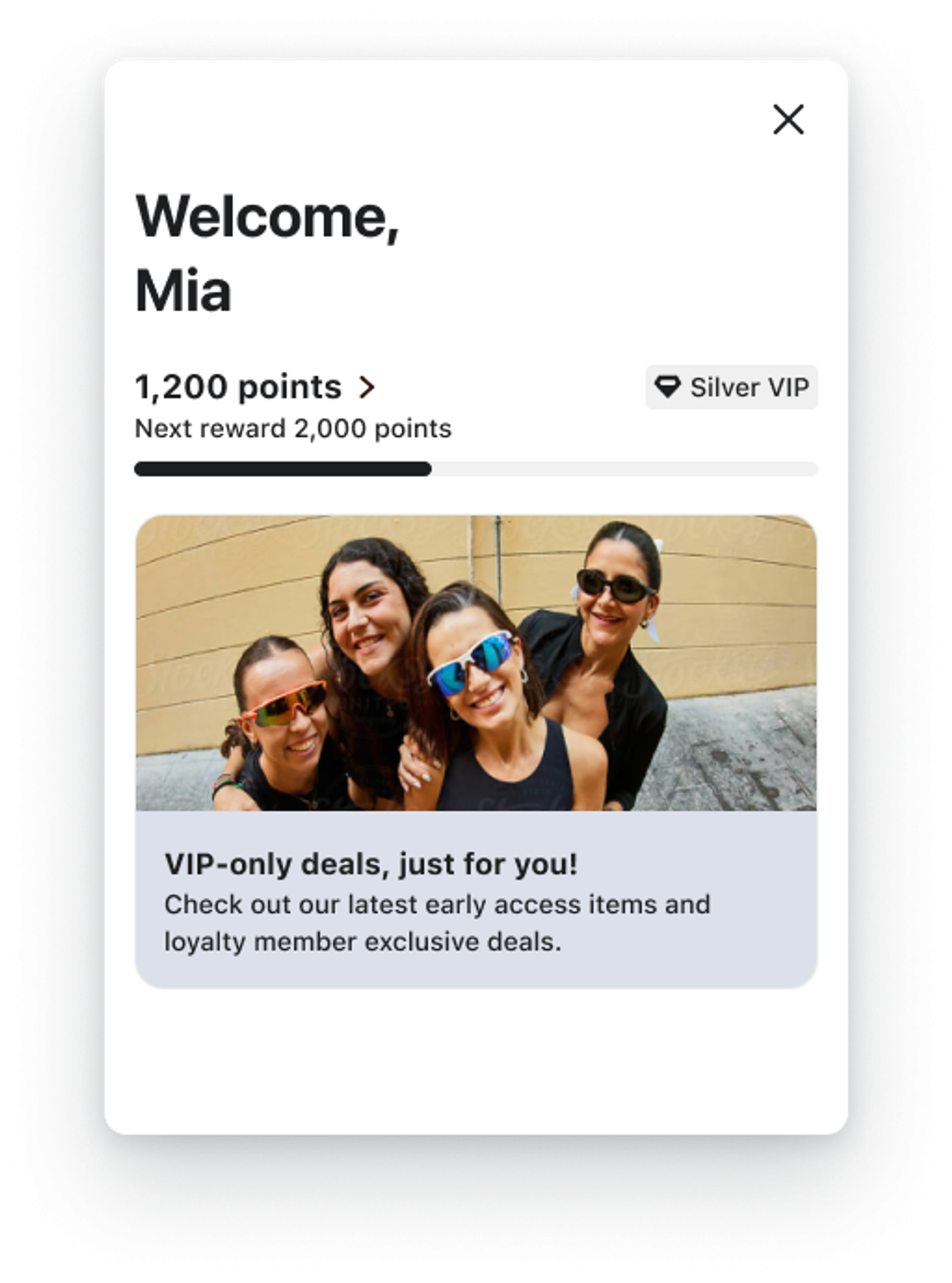
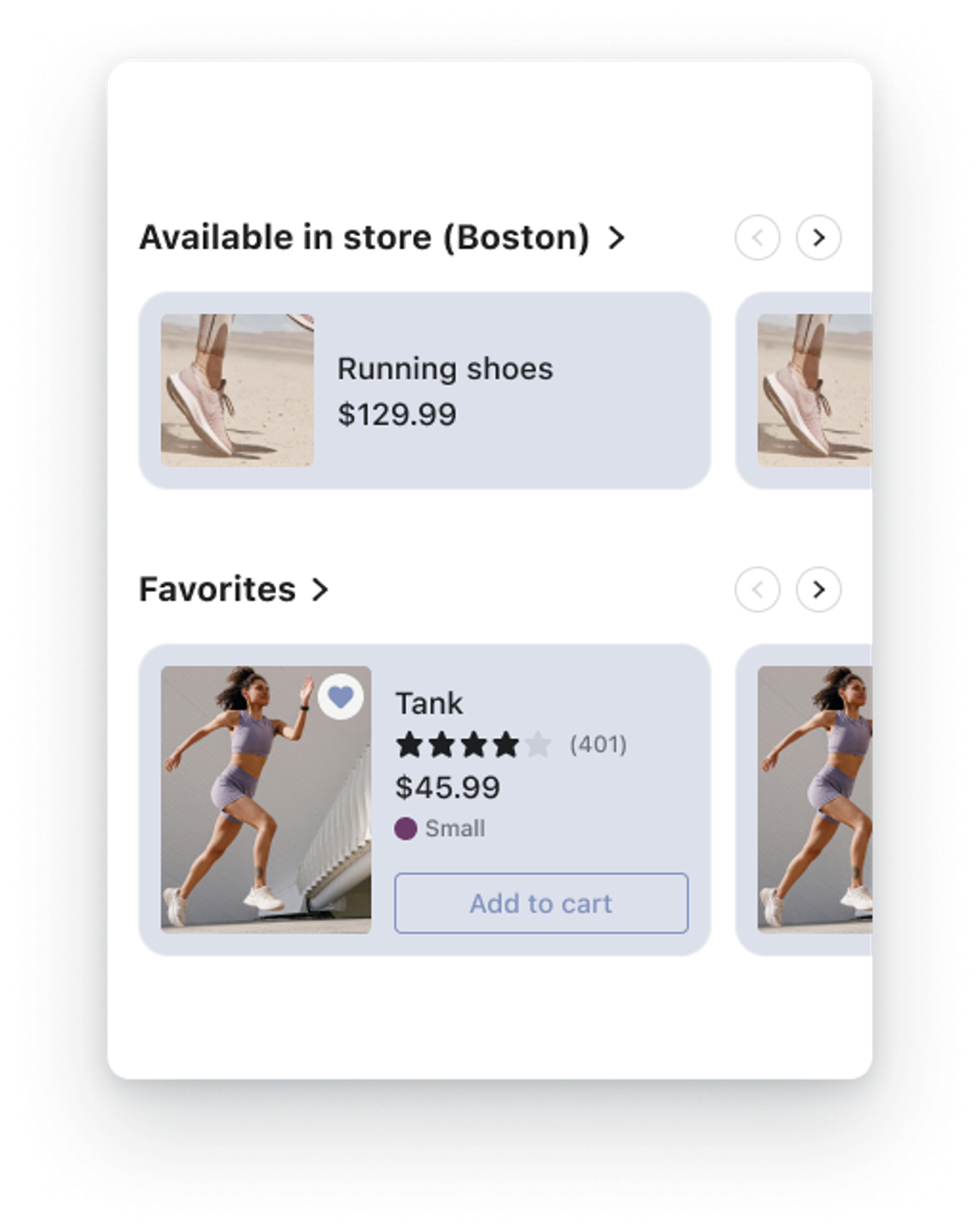
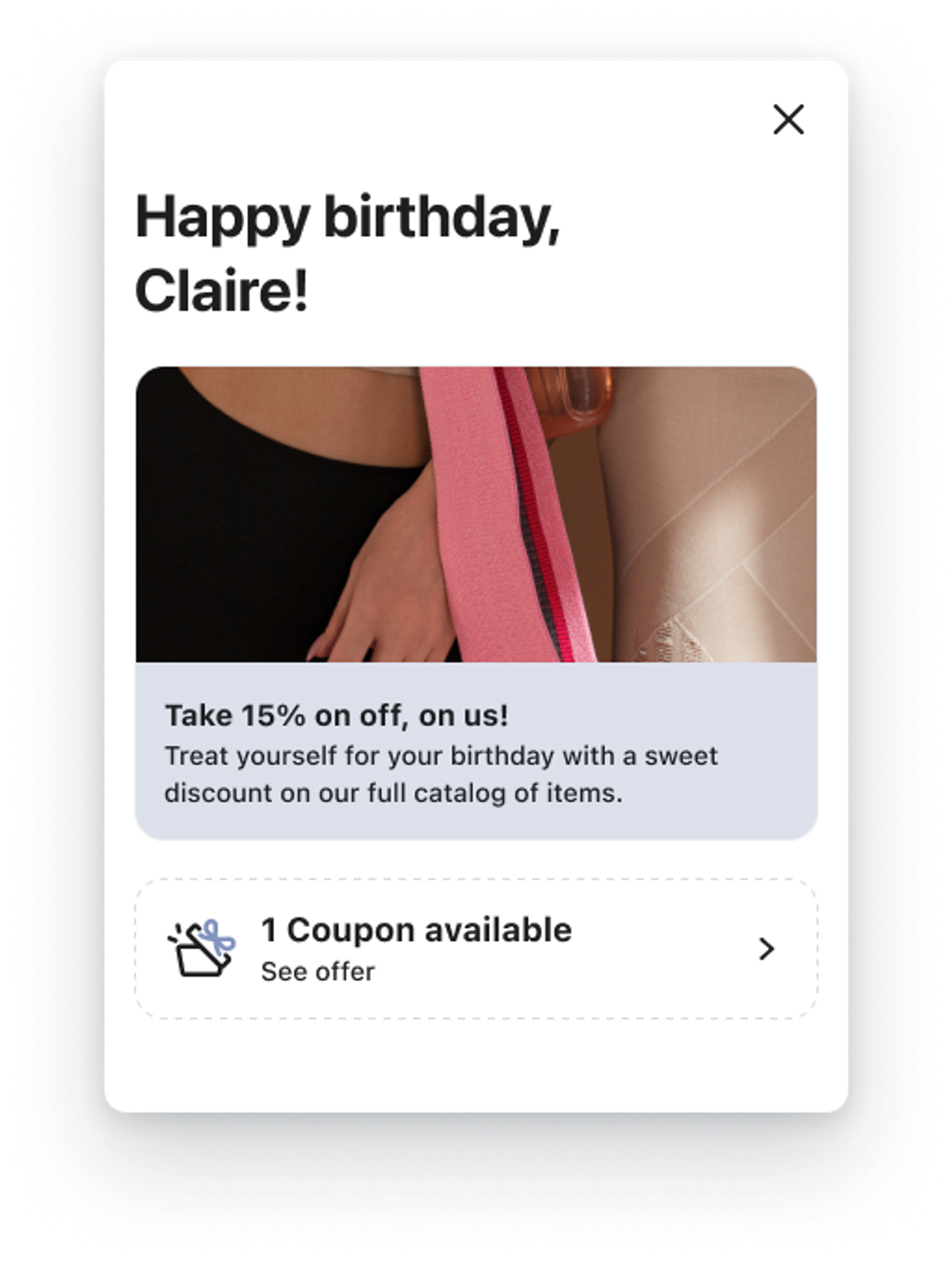
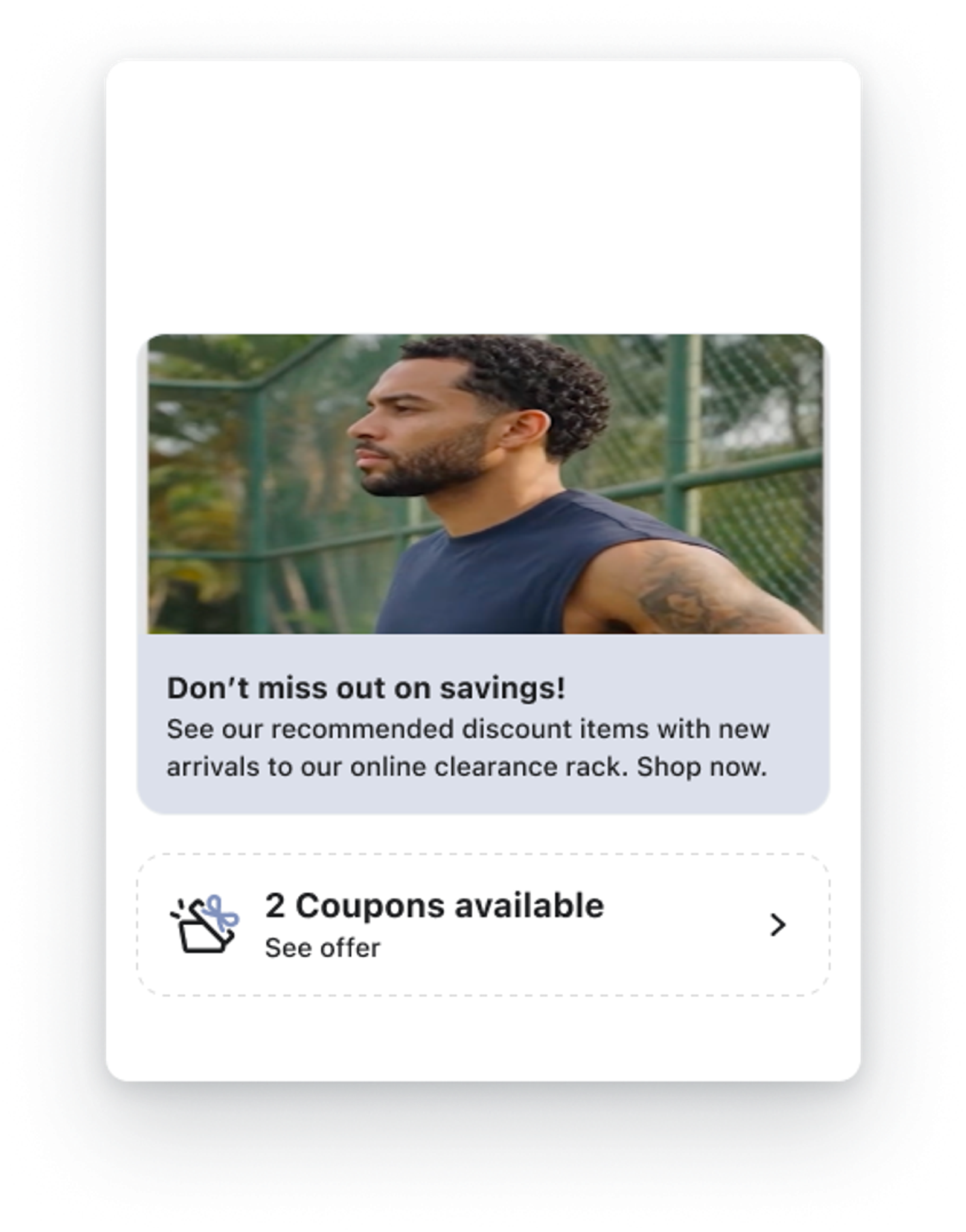
Many of the blocks we discussed in the last lesson are tied to important customer intents, such as product discovery, conversion, or support.
That said, you can also use Customer Hub for personalization based on lifecycle moments or key consumer characteristics. For time-sensitive promotions, for instance a holiday sale, schedule blocks to:
- Go live: Hit Schedule, then set a date and time for when the block should appear automatically.
- Update: Refine a published content block, then choose Schedule update to specify when the changes should take effect.
- Be removed: Open a block and select Schedule removal to set a date and time for when it should automatically disappear from your hub.
Need some inspiration for what blocks to create over the course of the year? Check out some examples by clicking through the slides below:
Add a banner to your site via Customer Hub
Beyond adding blocks that live as core building blocks of your Customer Hub, you can also add a banner to live at the very top of your website. Use this feature when you need a highly visible, targeted message to immediately attract the attention of shoppers.
For instance, use onsite banners to:
- Target important offers or promotions to segments.
- Announce a major sale or new product to all visitors.
- Display a current loyalty point balance to VIPs.
To make a banner like the example shown below, simply head to Customer Hub > Design; then, scroll down and select Create Banner.
There, you can customize the body content, call to action, and the overall look and feel of your banner before setting it live on your site.
Localize for a global audience
Now that you’ve personalized your Customer Hub experience, don’t stop there. In particular, if you have a global consumer base, follow these steps for localizing your Customer Hub so it's accessible and personalized for everyone.
Customer Hub will then detect the language a visitor uses based on their browser settings, allowing it to stay in sync with your website.
Customer Hub’s default language is the fallback option someone sees when their preferred language is unavailable. Click into Design > Edit your Hub. Under Language Preferences, select your Default Language and Save.
Klaviyo provides automatic system translations for a wide range of languages, enabling your Customer Hub to support a global audience. Navigate to Customer Hub > Design > Edit your Hub. Click Translate in the top bar and enable additional languages for your content.
You can update content at the block level as well. Duplicate your existing blocks and replace each copy with a translated version for each target language. Apply targeting rules to automatically serve the correct version.
Use location-based targeting to automatically display the right language content to the right audience segment.
Preview the Hub experience for each language and region to confirm content, formatting, and flows are correct before going live.
What’s next?
The strongest Hub experiences reflect customer intent. Personalization is not about showing more content. It is about showing the right content for the moment. In the next lesson, we'll go even deeper with integrations and extensions.