Optimize your workspace and reduce clutter
As ticket volume grows, an organized Helpdesk makes it easier for agents to focus on the conversations that need their attention. Features like views, macros, ticket management tools, and automated assignments can reduce repetitive work and keep the queue moving.
Explore the dropdowns below to learn how to save time, reduce clutter, and manage conversations more consistently.
Organize your tickets
Set up your Helpdesk structure before your inbox fills up.
Create custom views to filter tickets by status, channel, or tag so agents can focus on what matters most. For example, you can create a VIP Customers view so that tickets from high-priority customers surface first and can be viewed in one place.
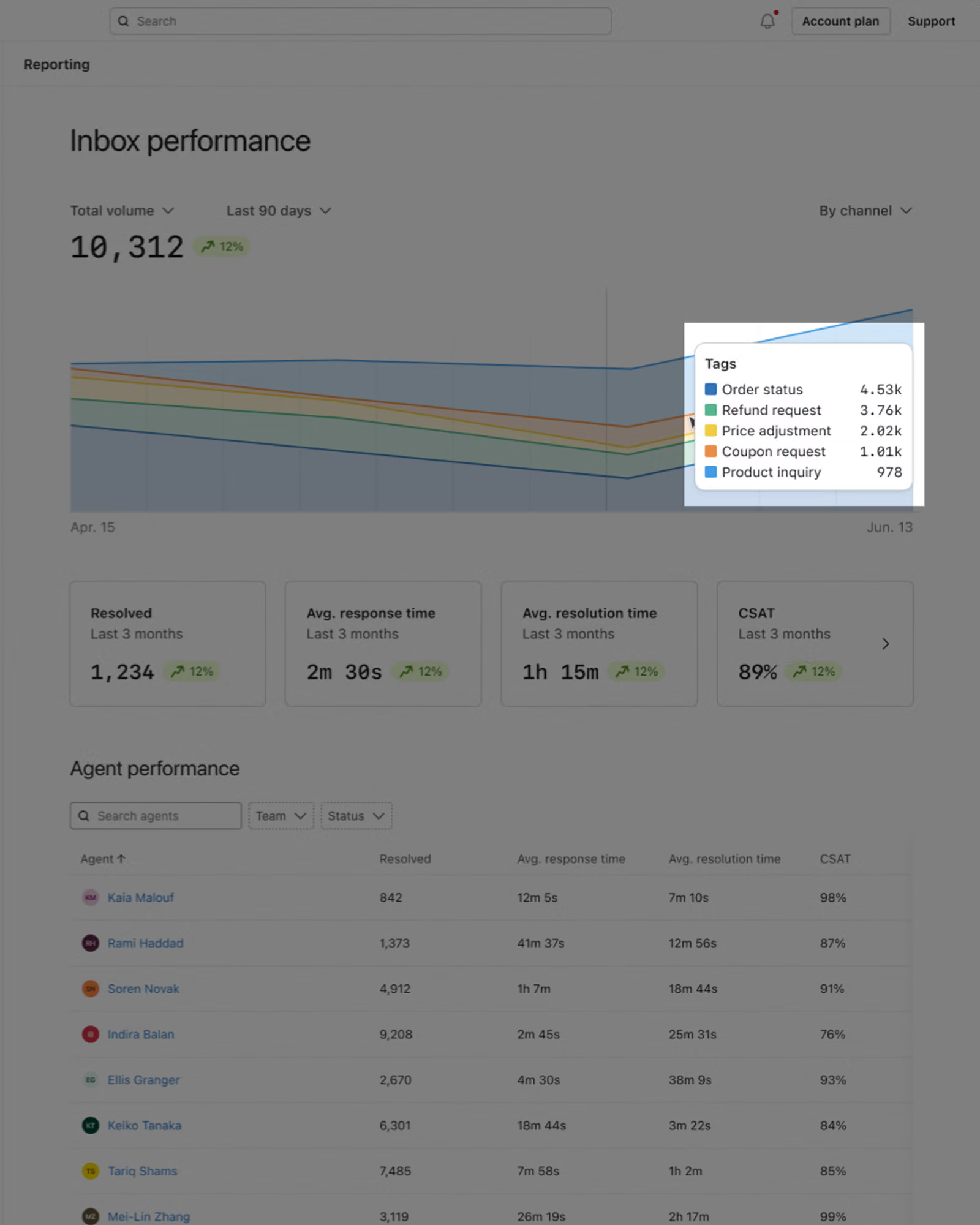
Tags can also be used for reporting, so think about what categories you want to report on as you create your tags. Make sure you only have one tag per topic (e.g., don't create 2 separate tags for Returns and Product returns). You can find automatic tags by navigating to Helpdesk > Reports and looking at the Tag performance report.
Taking time to define views and tags early will make your inbox easier to manage as volume grows.
You can add agent-specific signatures to each macro to keep everything organized.
Save time with macros
Build a few core macros before you start responding to tickets. Start small: 3-5 macros are enough to see an immediate impact on response times.
To create a new macro, go to Helpdesk > Settings > Macros and click Create macro.
Write clear, reusable responses to your most common questions (for example, order status or return policy).
Add personalization tags like {{first_name}} or {{order_id}} to make every message feel personal. You can use any profile properties in your macros, and you can also reference most properties about the customer's most recent order.
Stay on top of conversations
Manage open tickets with snoozing, internal notes, and auto-close.
Snoozing temporarily hides the ticket from your open messages for a set amount of time. For example, if you're waiting on warehouse confirmation, you can snooze a ticket for 2 days. After 2 days, you'll be reminded that it's time to readdress this ticket.
Use internal notes to communicate with or tag your teammates in particular tickets.
Enable auto-close to keep your queue clean by automatically closing tickets after a specific time of customer inactivity.
Monitor and close inactive or junk tickets
A queue can look busier than it really is when old conversations and junk tickets remain open. Regularly clearing these tickets gives agents a more accurate view of the customers who still need help.
Use ticket auto-close to close conversations after a customer has not replied for a set number of days:
- Go to Conversations > Inbox.
- Select Settings, then open the General tab.
- Turn on Ticket auto-close.
- Choose an inactivity period from 1 to 90 days, then save your changes.
Choose a timeframe that reflects how quickly your customers typically respond. Only a customer reply resets the inactivity timer, and snoozed tickets can still close automatically once that period is reached.
You should also periodically review tickets that have been automatically tagged as spam. Confirm that they do not contain legitimate customer questions, then close them to prevent them from distracting agents or inflating the number of open conversations.
Auto-assign tickets with Round Robin
Round-robin assignments help distribute new tickets evenly among available team members, so responsibility doesn’t fall to just 1 person. Tickets are assigned only to agents marked Online and follow your configured office hours.
- Go to Service > Helpdesk.
- Select Settings.
- Open the Inbound messages tab.
- Under Round robin assignment, select On.
- Click Save.
Before relying on round robin assignments, confirm that:
- Team members set their status to Online when they’re available.
- Agents switch to Offline during breaks or when they’re unavailable.
- Your office hours reflect when the team is actively monitoring Helpdesk.
- Someone regularly checks the Unassigned view for tickets that need attention.
Use reporting insights to continue improving workflows
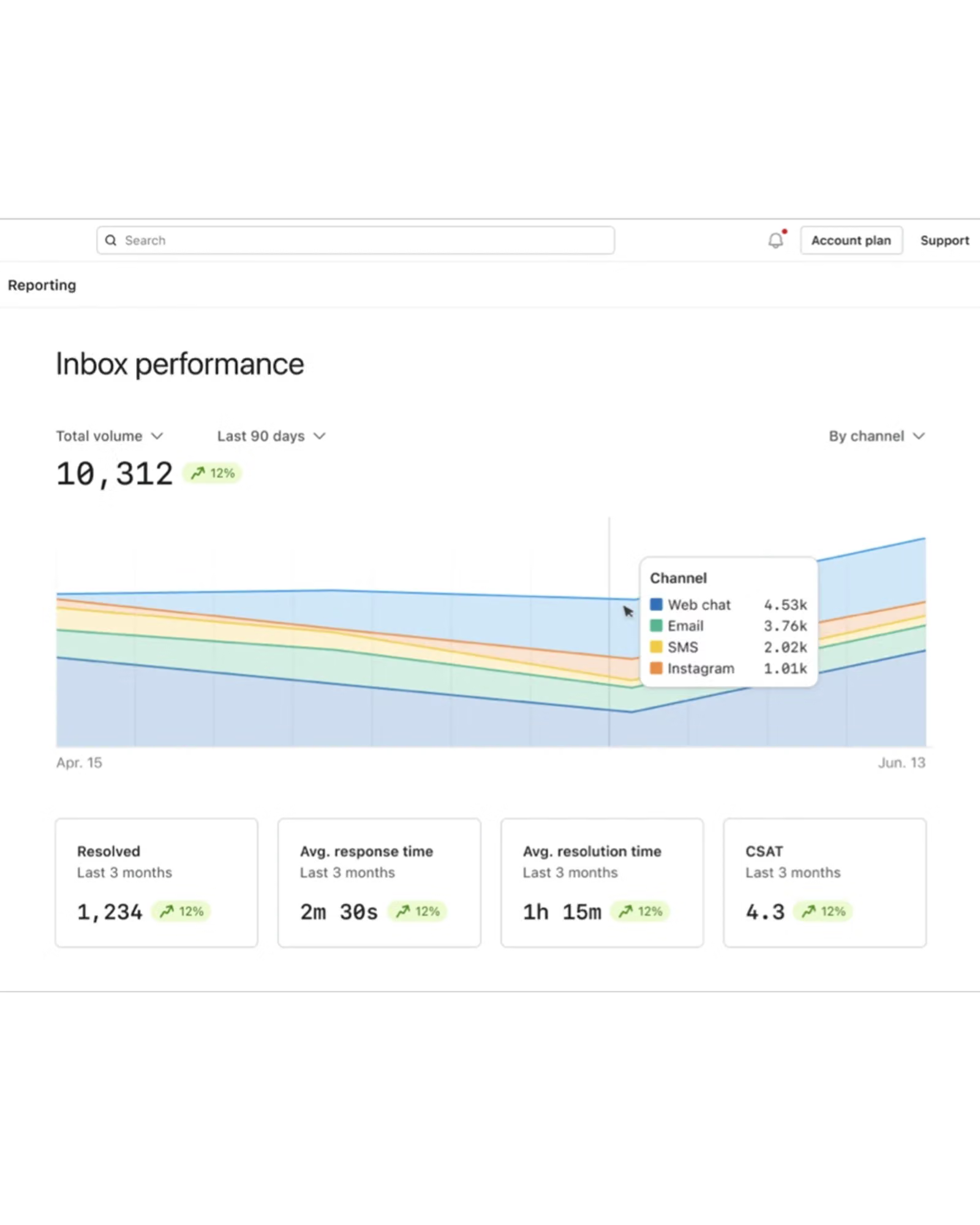
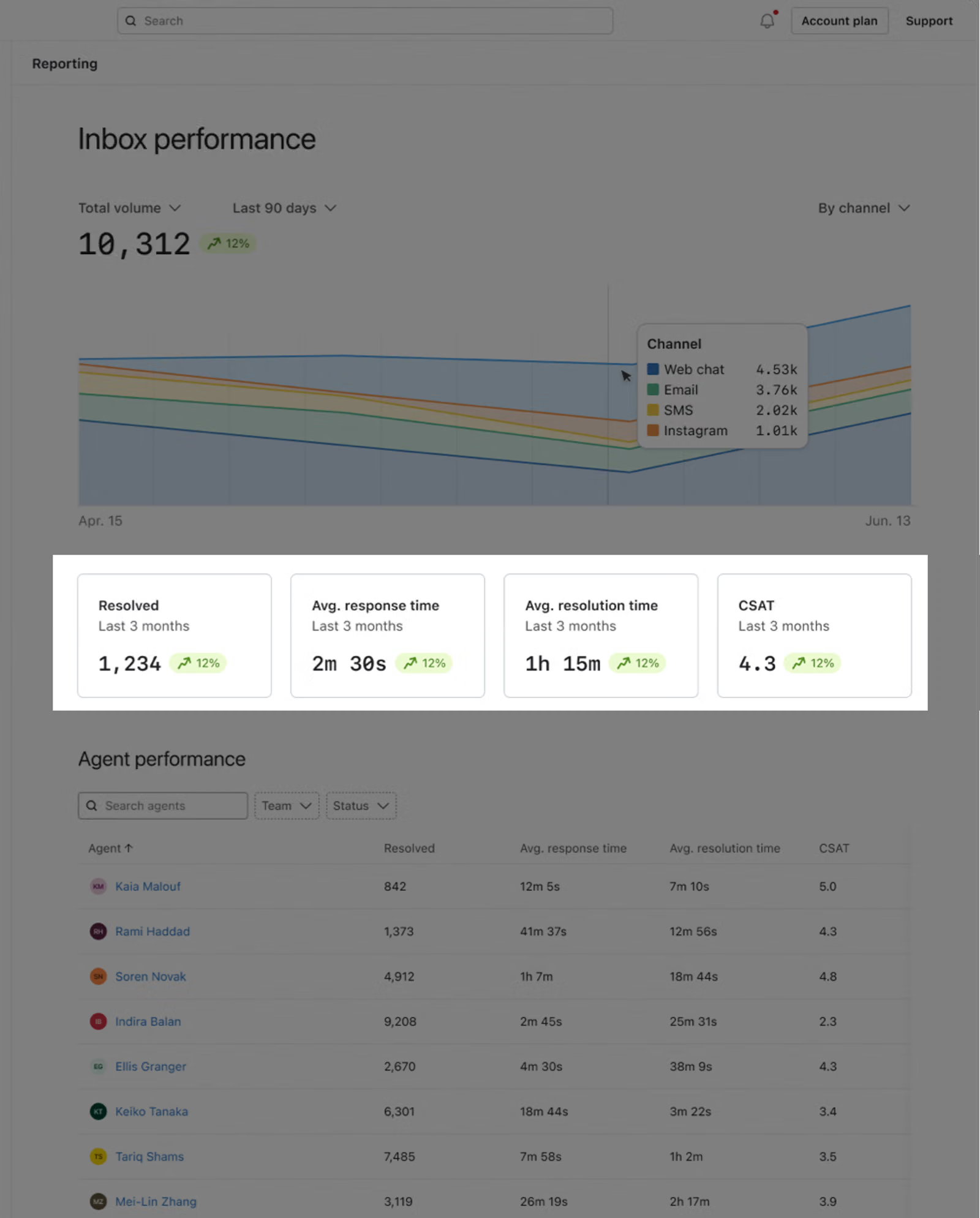
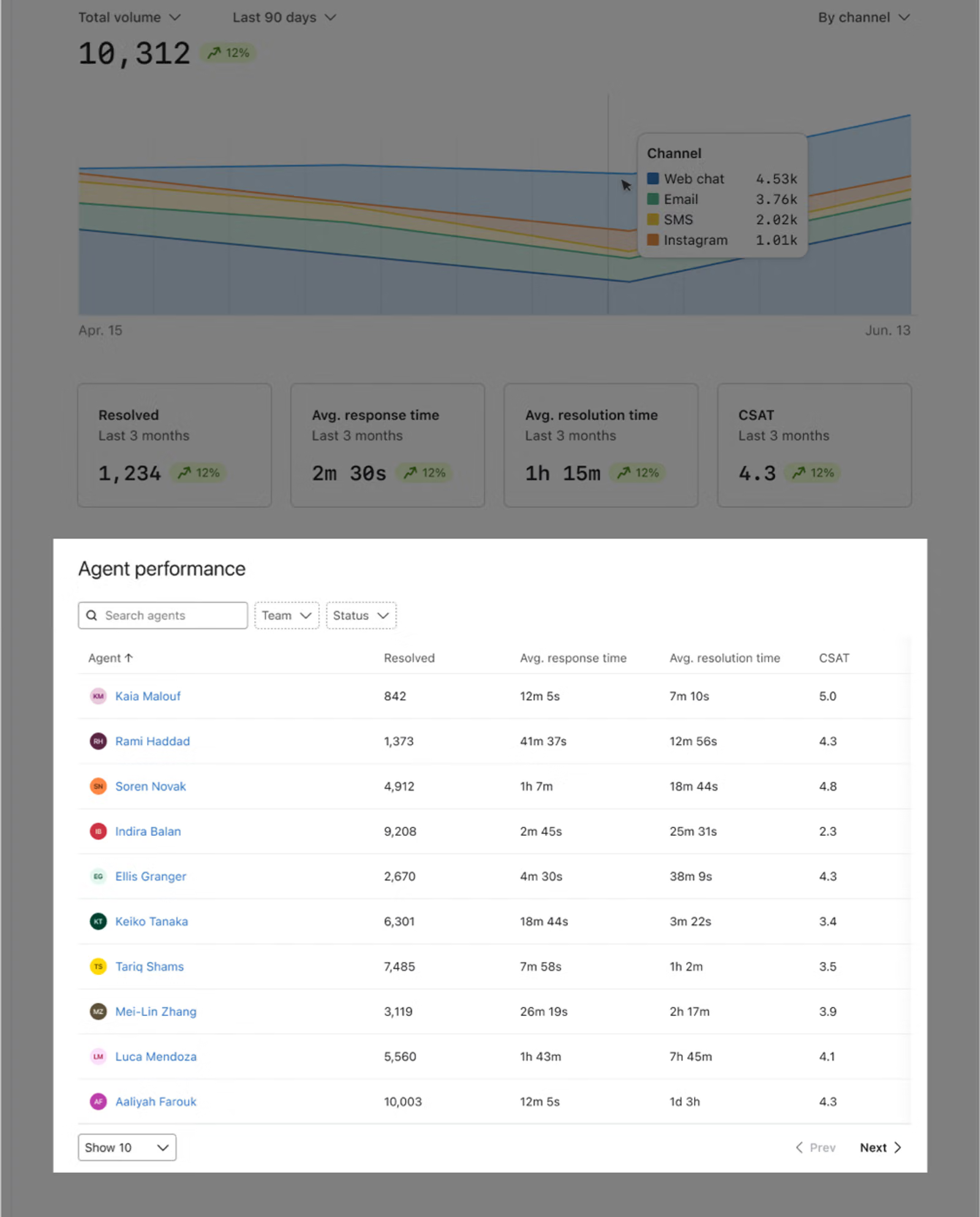
Fast replies and clear resolutions build trust, but Helpdesk reporting shows whether your team is consistently meeting customer expectations. Scroll through the slideshow below to explore the core reports that help you track support activity, identify trends and bottlenecks, and find opportunities to improve.
In the next lesson, we’ll leave you with some final best practices you should keep in mind as you start ramping up your own Helpdesk strategy.