What is Klaviyo Starter?
Klaviyo Starter brings powerful email marketing tools directly into Shopify Admin, so you can grow your business without ever switching between platforms. It's designed to work for you as you grow, with essential tools available from day 1.
Why use this experience:
- No more switching tools: Manage your email marketing without leaving the Shopify Admin. Think of it as your marketing engine, built right into the place you already run your store.
- Ready in minutes: Launch your first automations with guided templates.
- Get clear ROI: View key performance metrics in an action-oriented dashboard inside Shopify.
- Create on-brand content: Use integrated AI to instantly generate on-brand copy for emails and forms.
- Scale seamlessly: Start free with essential features, then scale to the full Klaviyo platform as your business grows.
How to set up your account
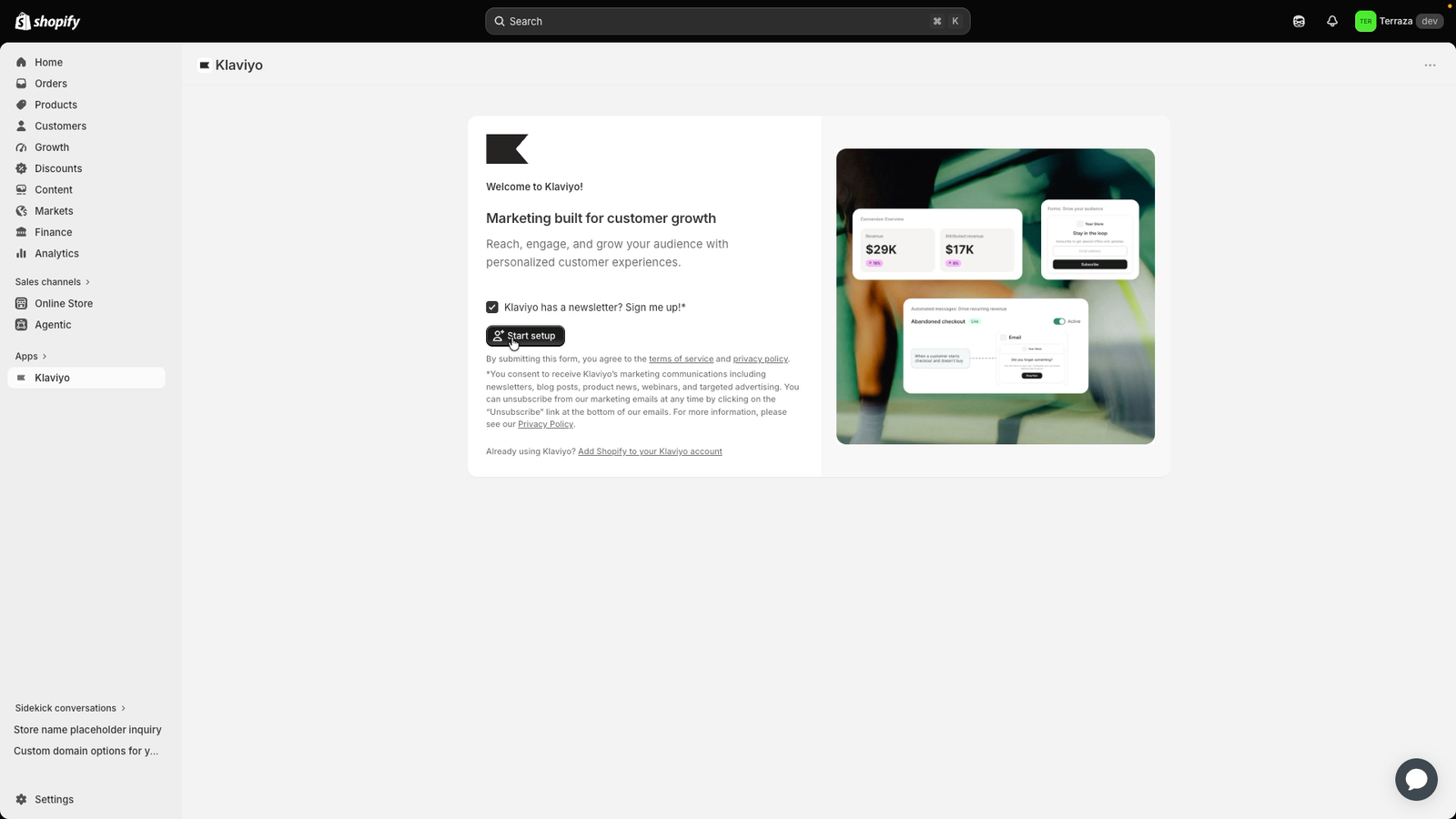
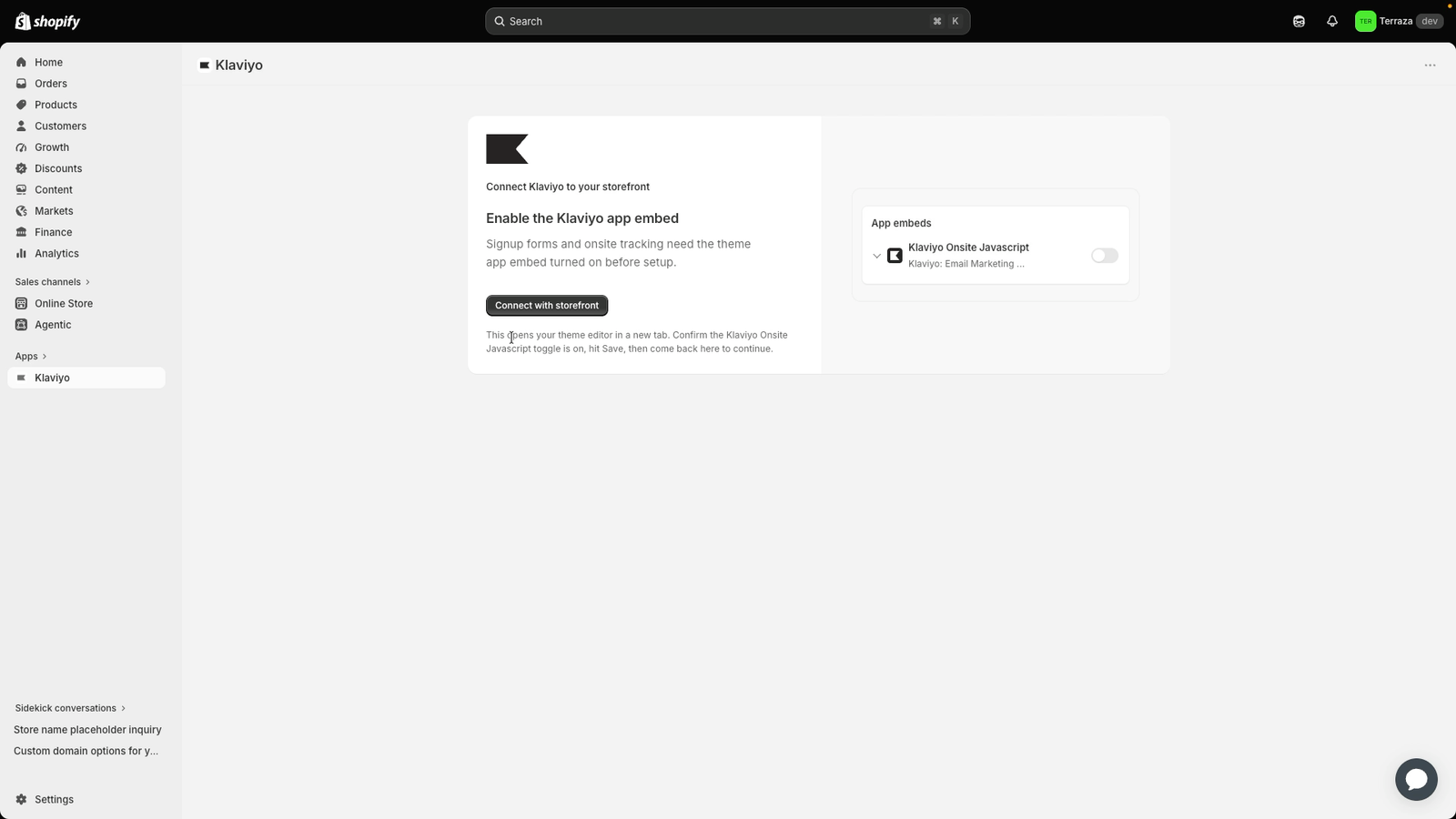
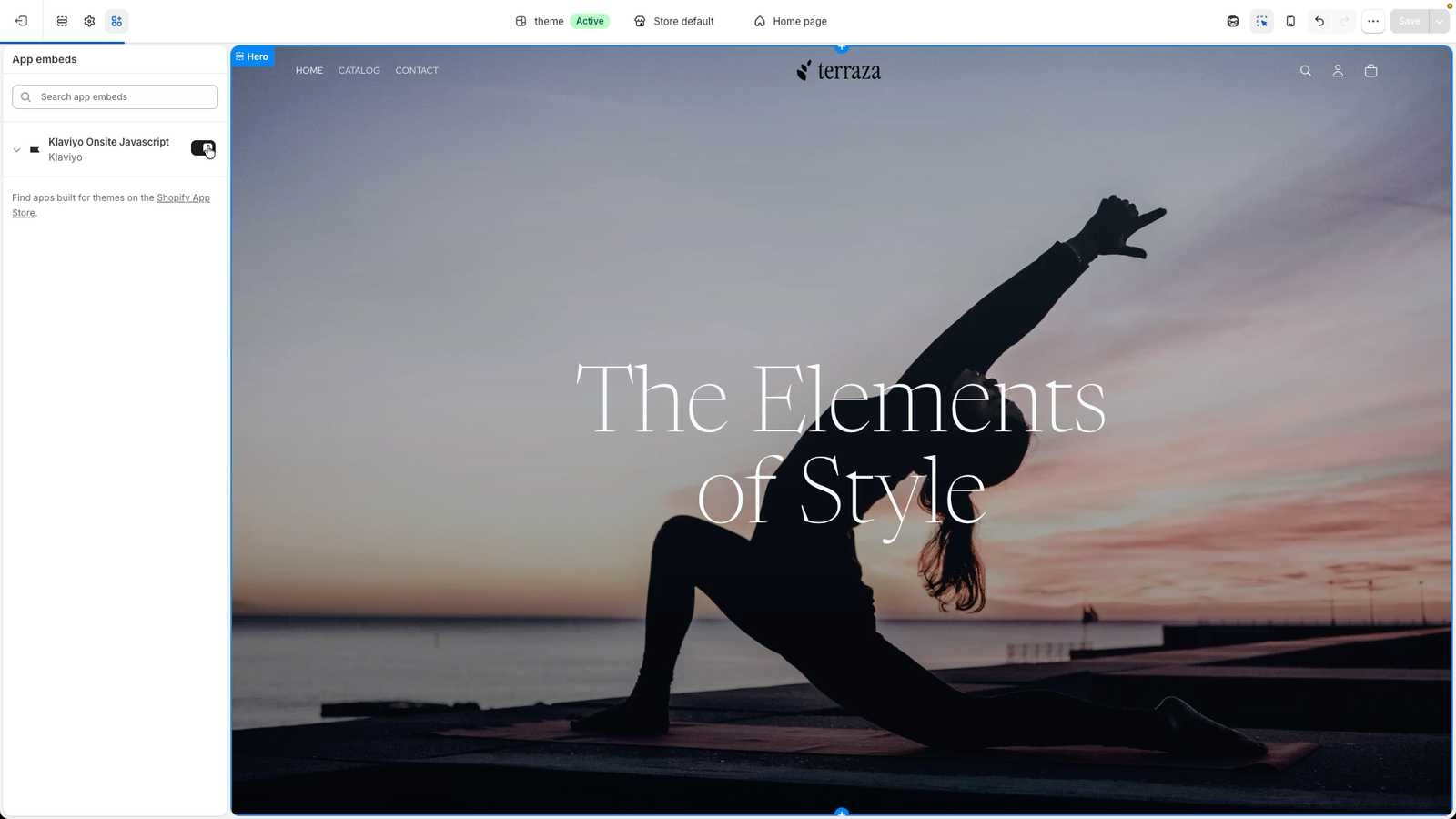
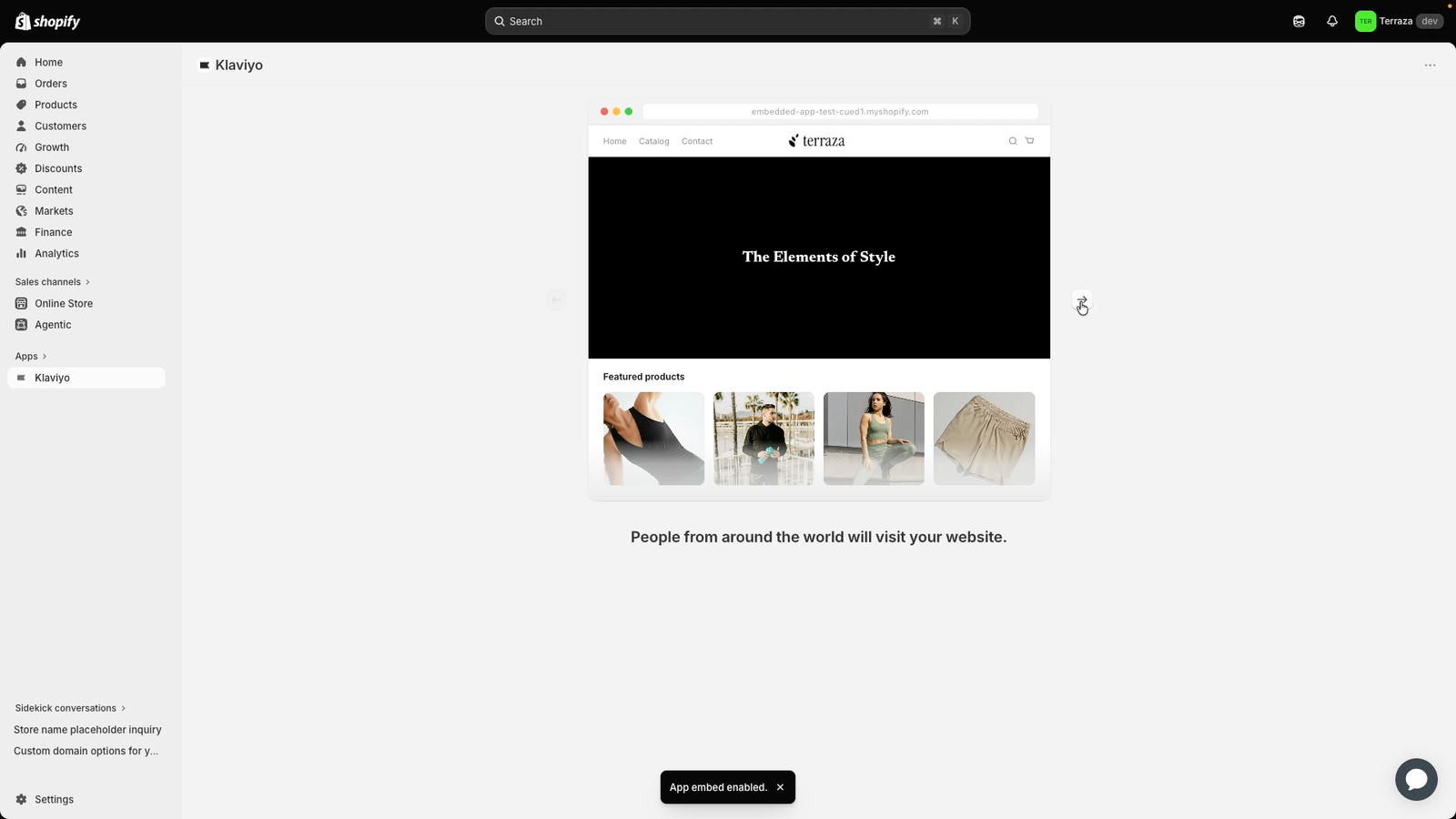
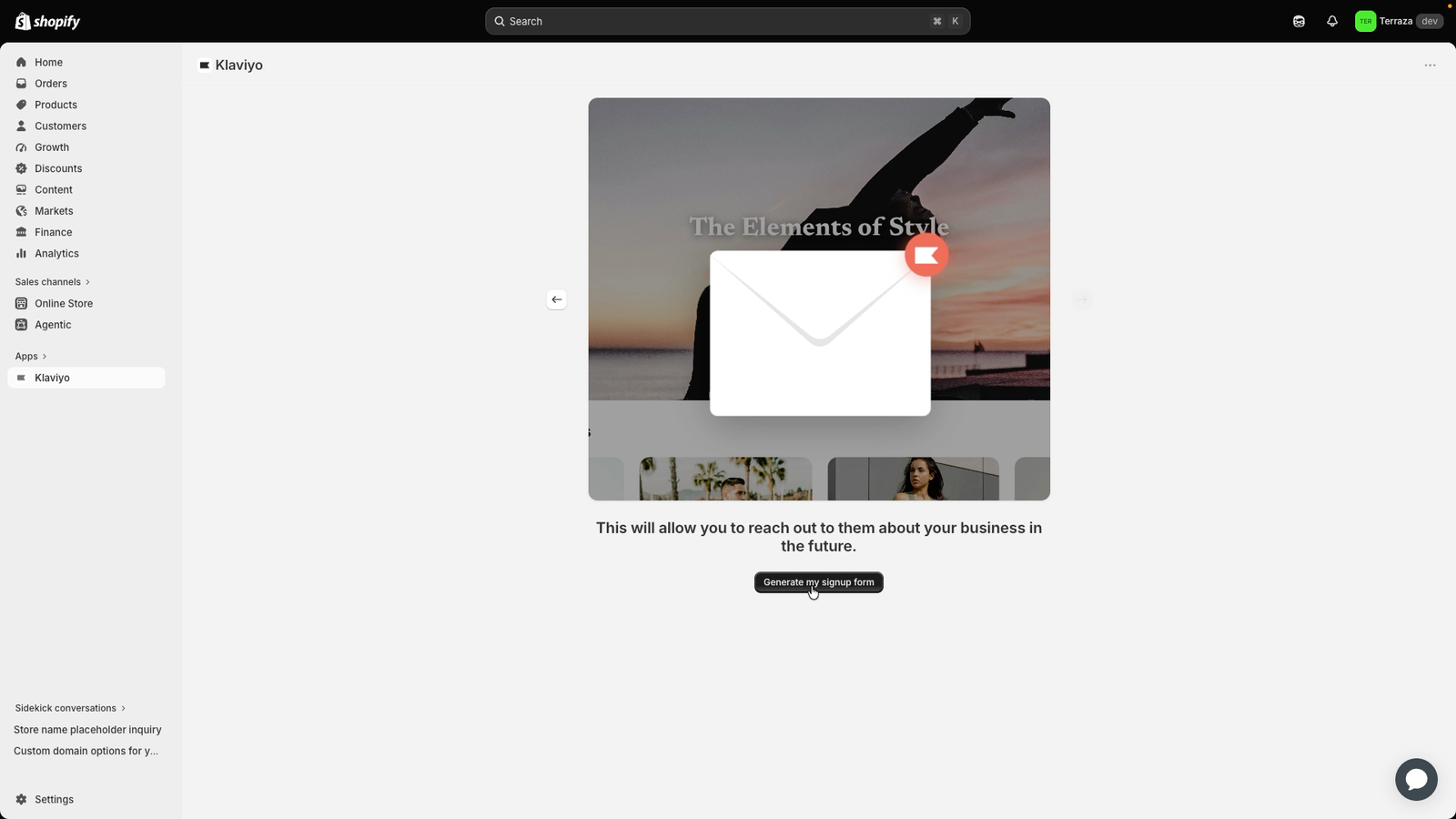
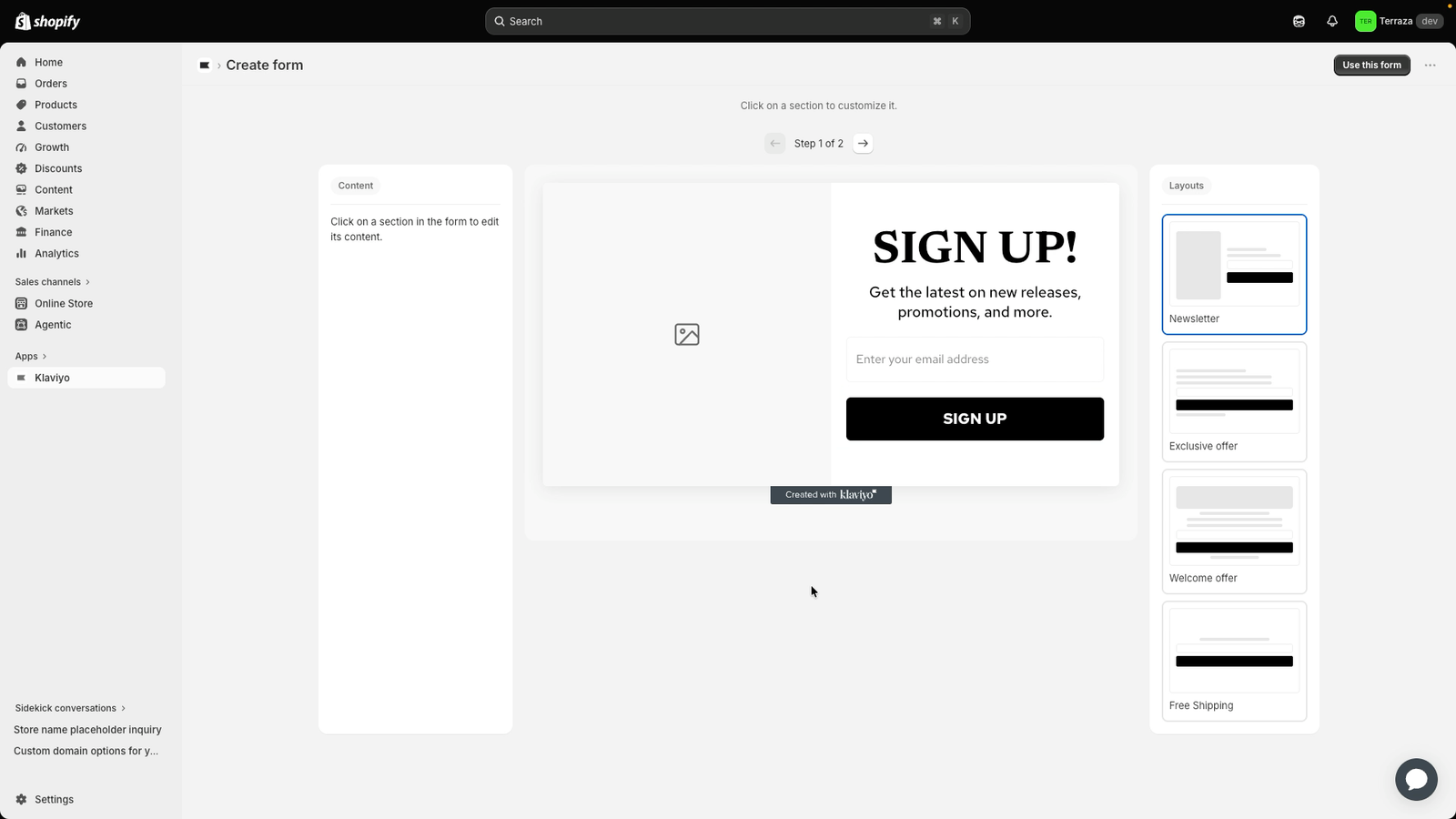
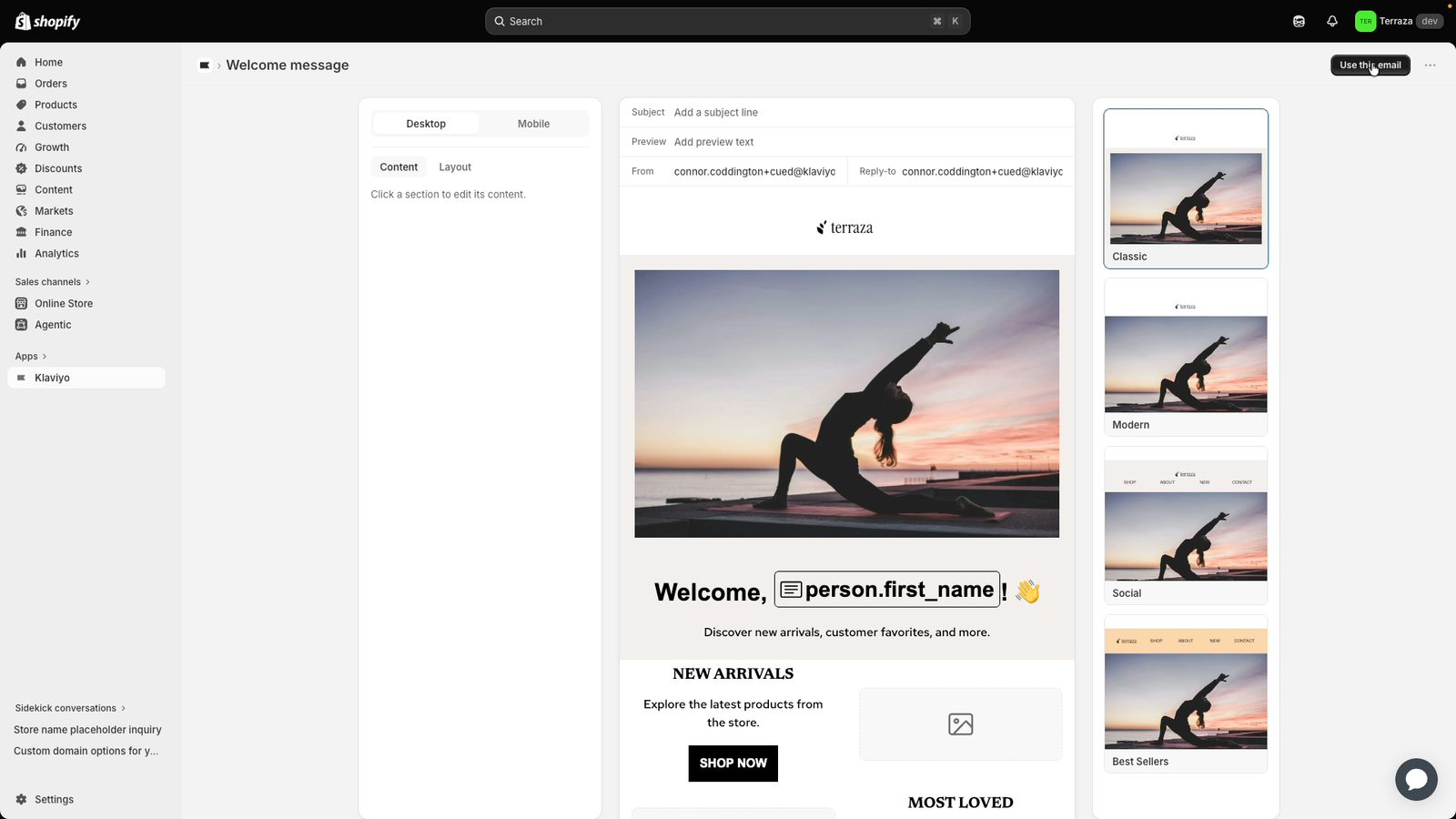
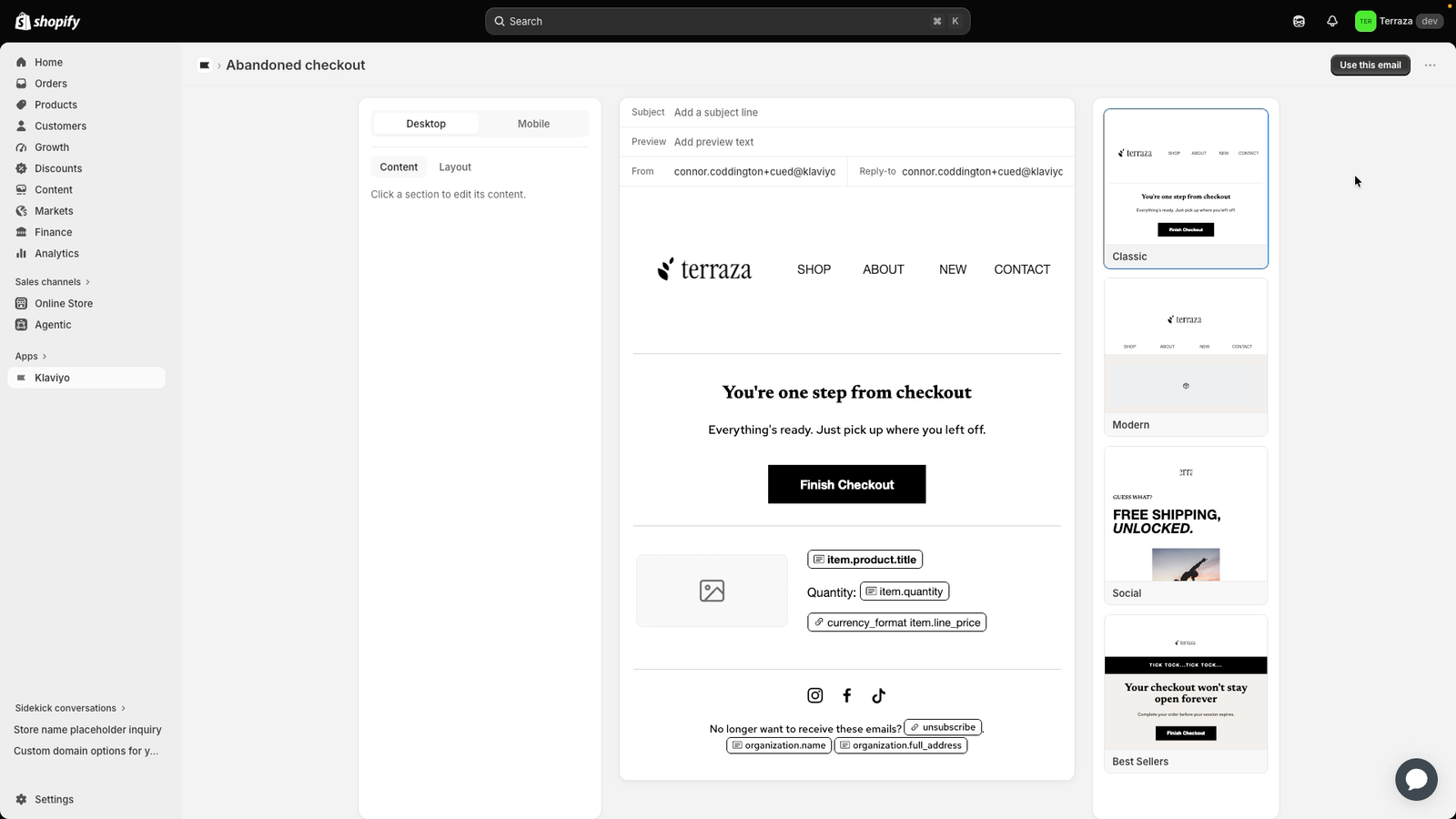
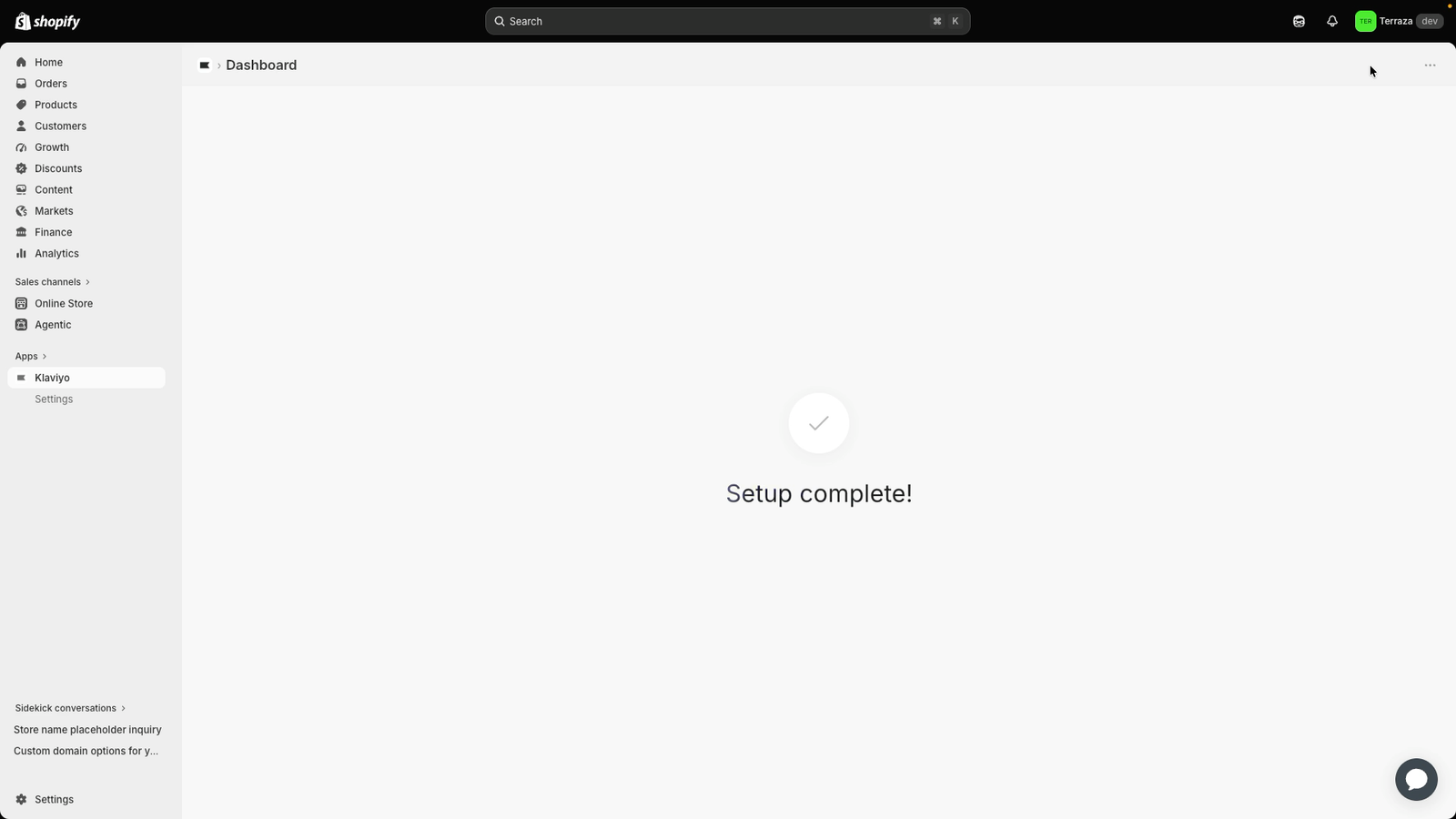
Click through the slideshow below to walk through the complete setup process, including how to:
- Launch the setup process.
- Create your first sign-up form to grow your marketing list.
- Build a welcome series to engage new subscribers.
- Set up an abandoned cart flow to earn more revenue.
Define core marketing features
For more information on some of the core features you just enabled in the video above, click into the flashcards. Each will tell you more about these marketing building blocks.
What it is: A form on your storefront that captures visitor email addresses (and optionally phone numbers) in exchange for a discount, early access, or valuable content.
Its purpose: Build your owned audience directly from your website traffic, no ad spend required.
What it is: An automated sequence of emails sent to new subscribers right after they join your list, introducing your brand and guiding them toward a first purchase.
Its purpose: Make a strong first impression, build brand trust, and convert new subscribers into paying customers automatically.
What it is: An automated email (or series) triggered when a shopper adds items to their cart but leaves your store without completing the purchase.
Its purpose: Recover lost revenue by reminding shoppers what they left behind, often with a gentle nudge or small incentive to close the sale. Abandoned cart flows are among the highest-ROI automations in ecommerce.
What it is: A form on your storefront that captures visitor email addresses (and optionally phone numbers) in exchange for a discount, early access, or valuable content.
Its purpose: Build your owned audience directly from your website traffic, no ad spend required.
What it is: An automated sequence of emails sent to new subscribers right after they join your list, introducing your brand and guiding them toward a first purchase.
Its purpose: Make a strong first impression, build brand trust, and convert new subscribers into paying customers automatically.
What it is: An automated email (or series) triggered when a shopper adds items to their cart but leaves your store without completing the purchase.
Its purpose: Recover lost revenue by reminding shoppers what they left behind, often with a gentle nudge or small incentive to close the sale. Abandoned cart flows are among the highest-ROI automations in ecommerce.
What's next?
Congratulations, your marketing foundations are now in place. In the rest of this course, you'll dive deeper into how to optimize your performance over time and earn revenue with additional actions in the app.
Each lesson builds on what you've already set up, so you'll see how these pieces connect into a cohesive marketing system. Keep up the great work and continue driving more revenue for your brand!